MS Paint
Learning Objectives
- Understand what MS Paint is and what it is used for.
- Learn how to open MS Paint on the computer.
- Identify the different parts of the MS Paint window.
- Use drawing tools like Pencil, Brush, Eraser, Shapes, and Text.
- Learn how to select and fill colors in a drawing.
- Save a drawing using File → Save.
Introduction — What is MS Paint?
MS Paint (Microsoft Paint) is a simple drawing program that comes free with every Windows computer. It lets you draw pictures, color them, add shapes, and write text — all using your mouse!
Just like you use crayons and paper to draw in your art class, MS Paint gives you a white canvas on the computer screen where you can create beautiful drawings. You can draw a house, a flower, the Indian flag, or anything you imagine!
MS Paint is found in the Accessories folder of Windows. It is one of the first programs children learn to use on a computer because it is easy and fun.
Opening MS Paint
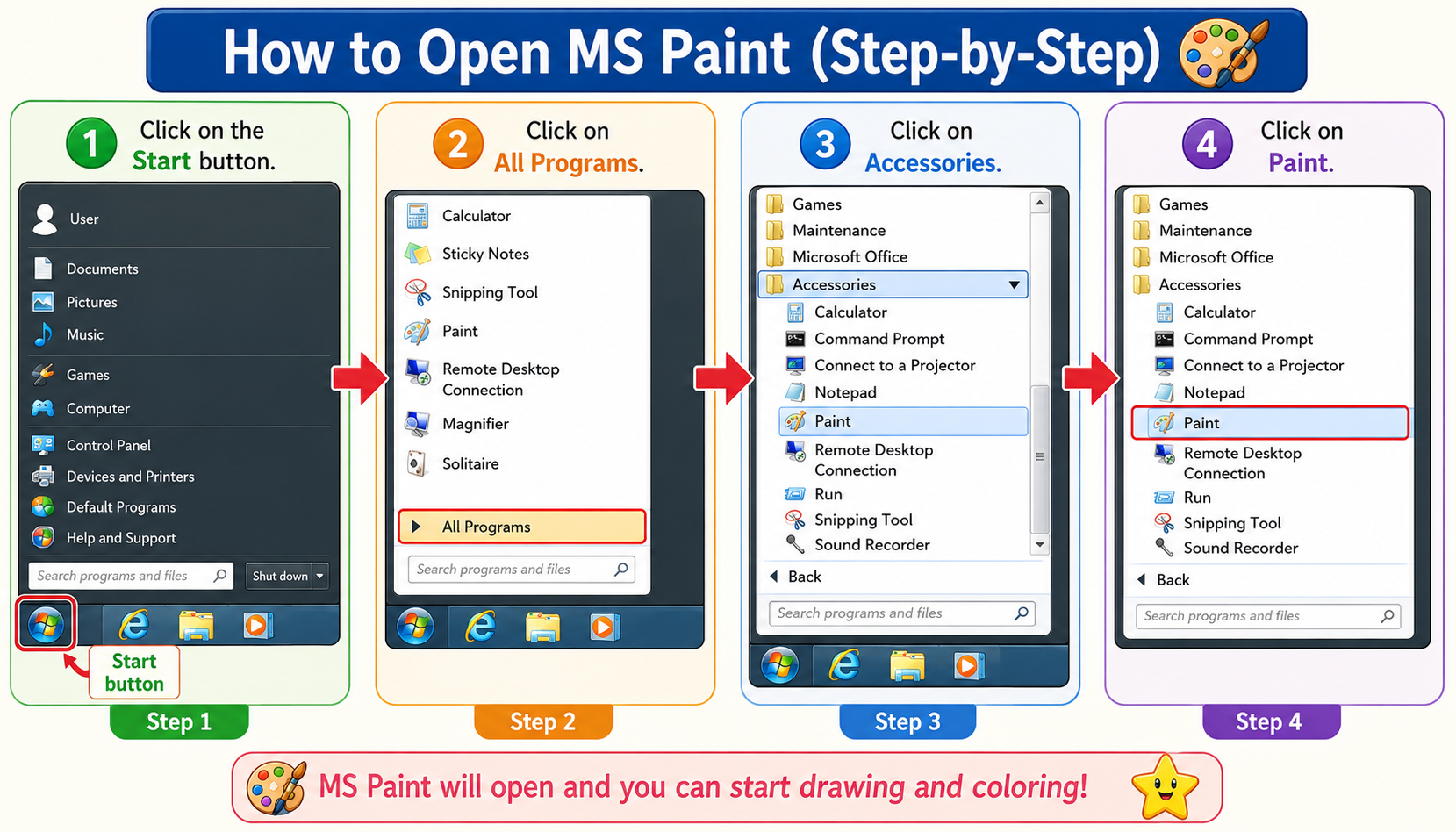
To open MS Paint on your computer, follow these simple steps:
Step 1: Click on the Start button (at the bottom-left corner of the screen).
Step 2: Click on All Programs.
Step 3: Click on Accessories.
Step 4: Click on Paint.
The MS Paint window will open with a white drawing area ready for you!
Parts of the MS Paint Window
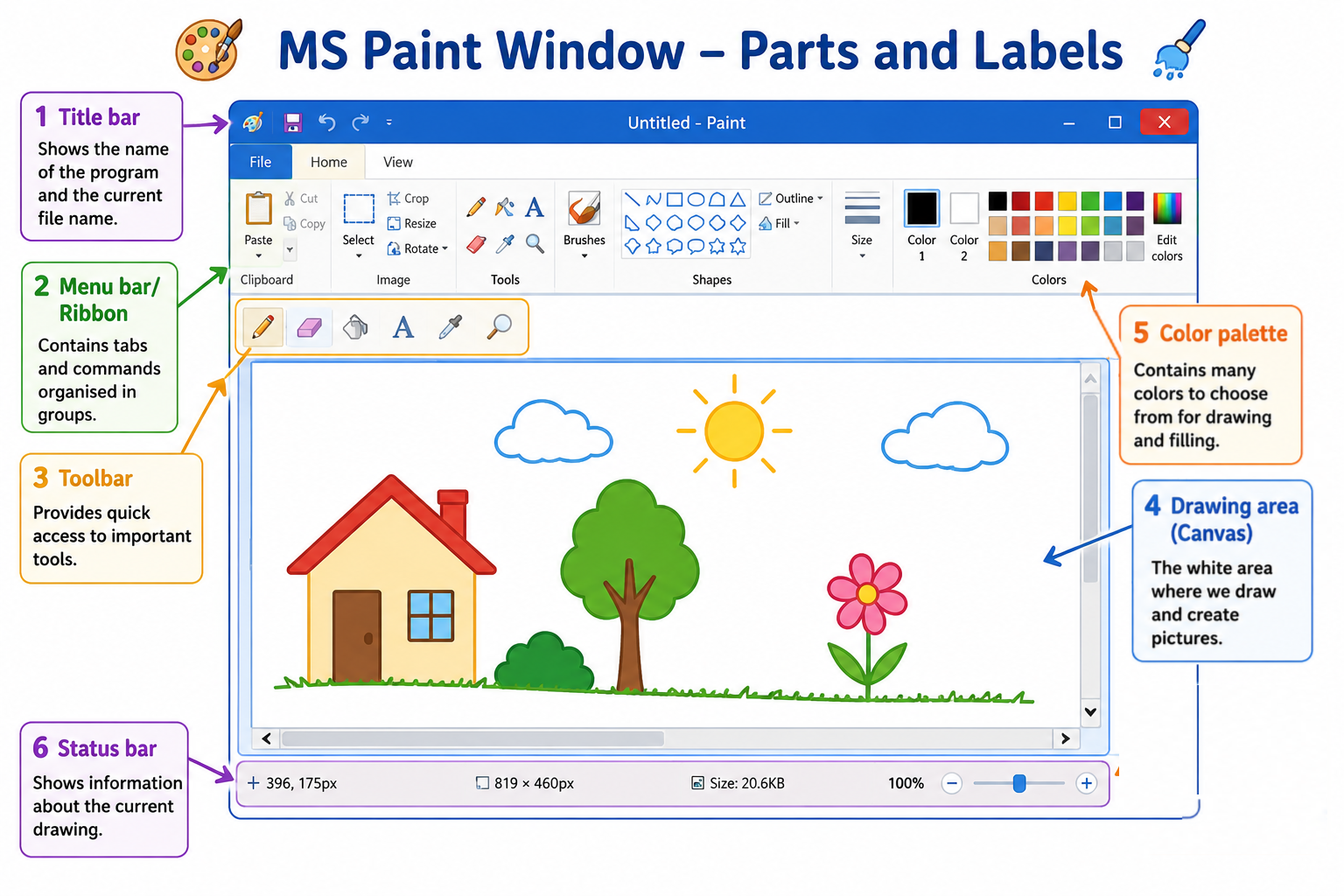
When you open MS Paint, you will see a window with many parts. Let us learn about each part:
| Part of MS Paint | What it does |
|---|---|
| Title Bar | Shows the name of your drawing file at the top of the window. If you haven't saved yet, it shows "Untitled - Paint". |
| Menu Bar / Ribbon | Contains menus like File, Home, and View. You can find all the commands and options here. |
| Toolbar (Tools Panel) | Contains all the drawing tools — Pencil, Brush, Eraser, Shapes, Text, Fill, and more. |
| Drawing Area (Canvas) | The large white area in the center where you draw your pictures. This is your digital paper! |
| Color Palette | A row of colors at the top. Click on any color to use it for drawing. You can also create custom colors. |
| Status Bar | At the bottom of the window. Shows the position of your mouse cursor and the size of the canvas. |
Drawing Tools in MS Paint
MS Paint has many tools to help you draw. Each tool does a different job. Let us learn about the most important ones:
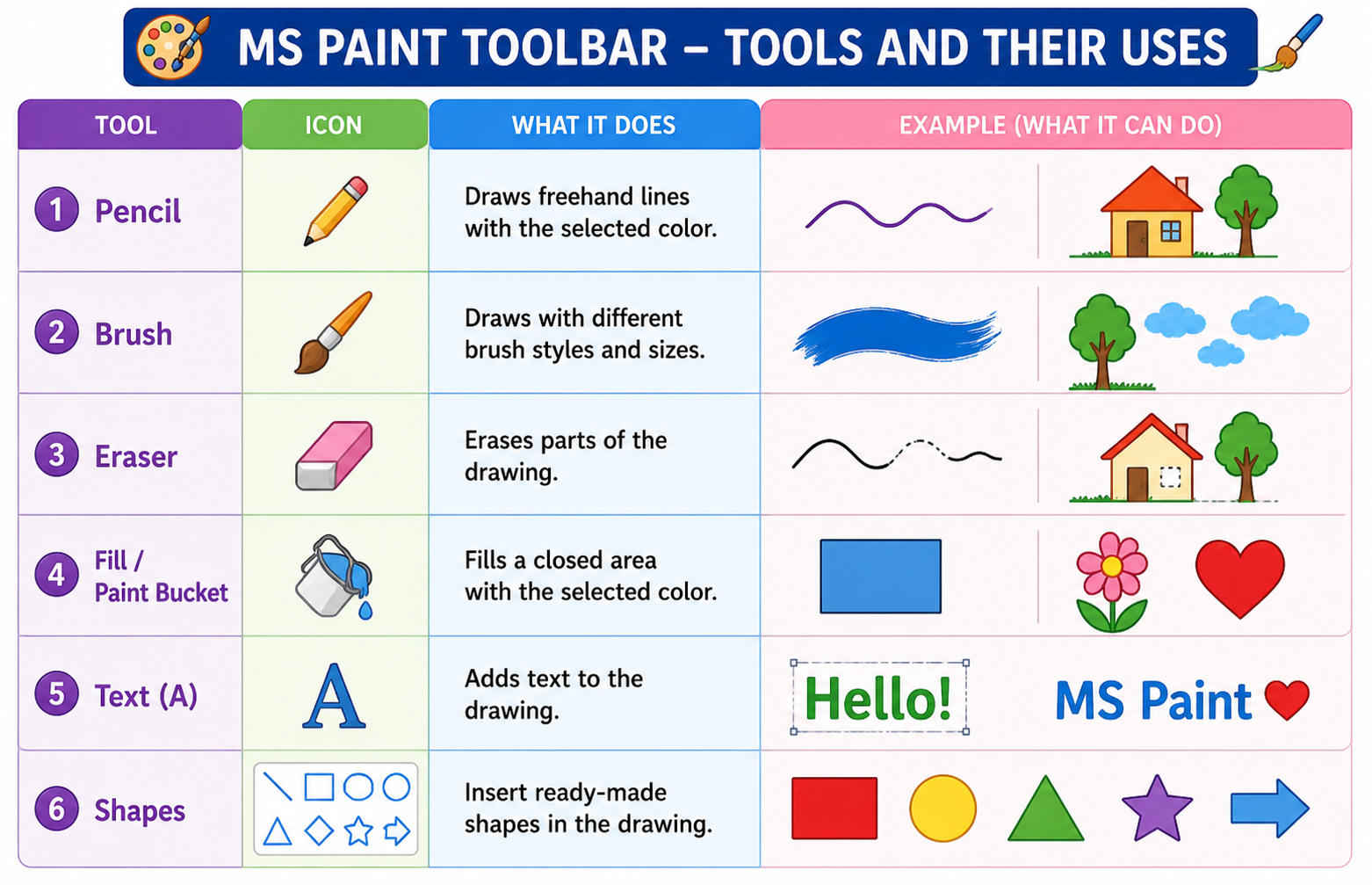
| Tool | What it does | How to use it |
|---|---|---|
| Pencil | Draws thin freehand lines | Click and drag the mouse to draw thin lines, just like a real pencil on paper. |
| Brush | Draws thicker, softer strokes | Click and drag to paint. You can choose different brush sizes and styles. |
| Eraser | Removes parts of your drawing | Click and drag over the part you want to erase. It turns that area white (or the background color). |
| Fill with Color (Paint Bucket) | Fills a closed area with a color | Select a color, click the Fill tool, then click inside any closed shape to fill it with that color. |
| Text Tool (A) | Lets you type text on the drawing | Click the "A" tool, draw a text box on the canvas, then type your text. You can choose font and size. |
| Shapes | Draws ready-made shapes | Choose a shape (line, rectangle, circle, oval, triangle, star) and drag on the canvas to draw it. |
Drawing Shapes
MS Paint has many ready-made shapes you can use:
- Line: Draws a straight line from one point to another.
- Rectangle: Draws a box shape (like a door or a book).
- Circle (Ellipse): Draws a round shape (like a ball or the sun).
- Oval: Draws an egg-shaped figure.
- Rounded Rectangle: A rectangle with smooth, rounded corners.
- Triangle: A three-sided shape (like a roof).
- Star: A star shape with pointed edges.
Using Colors in MS Paint
Colors make your drawings beautiful and lively! MS Paint gives you a Color Palette with many colors to choose from.
Step 1: Look at the Color Palette at the top of the screen. You will see many colored squares.
Step 2: Left-click on a color to set it as your foreground color (Color 1). This is the color you draw with.
Step 3: Right-click on a color to set it as your background color (Color 2). This is used by the eraser and for shape fills.
Step 4: If you want a color that is not in the palette, click "Edit Colors" to create your own custom color!
Filling a Shape with Color
To fill a closed shape (like a rectangle or circle) with color:
- First, choose the color you want from the Color Palette.
- Then, click on the Fill with Color tool (it looks like a paint bucket).
- Now, click inside the closed shape. The entire area will be filled with your chosen color!
Saving a Drawing
After you finish your drawing, you must save it so you don't lose your work. Saving stores your drawing as a file on the computer.
Step 1: Click on File in the menu bar (or the blue button at the top-left).
Step 2: Click on Save (or press Ctrl + S on the keyboard).
Step 3: A "Save As" box will appear. Type a name for your drawing (for example: "My Indian Flag").
Step 4: Choose a location to save it (like Desktop, Documents, or My Pictures).
Step 5: Click the Save button. Done! Your drawing is now saved.
Fun Things to Draw in MS Paint
Now that you know the tools, here are some fun things you can draw in MS Paint:
| Drawing | Tools You Can Use | Steps |
|---|---|---|
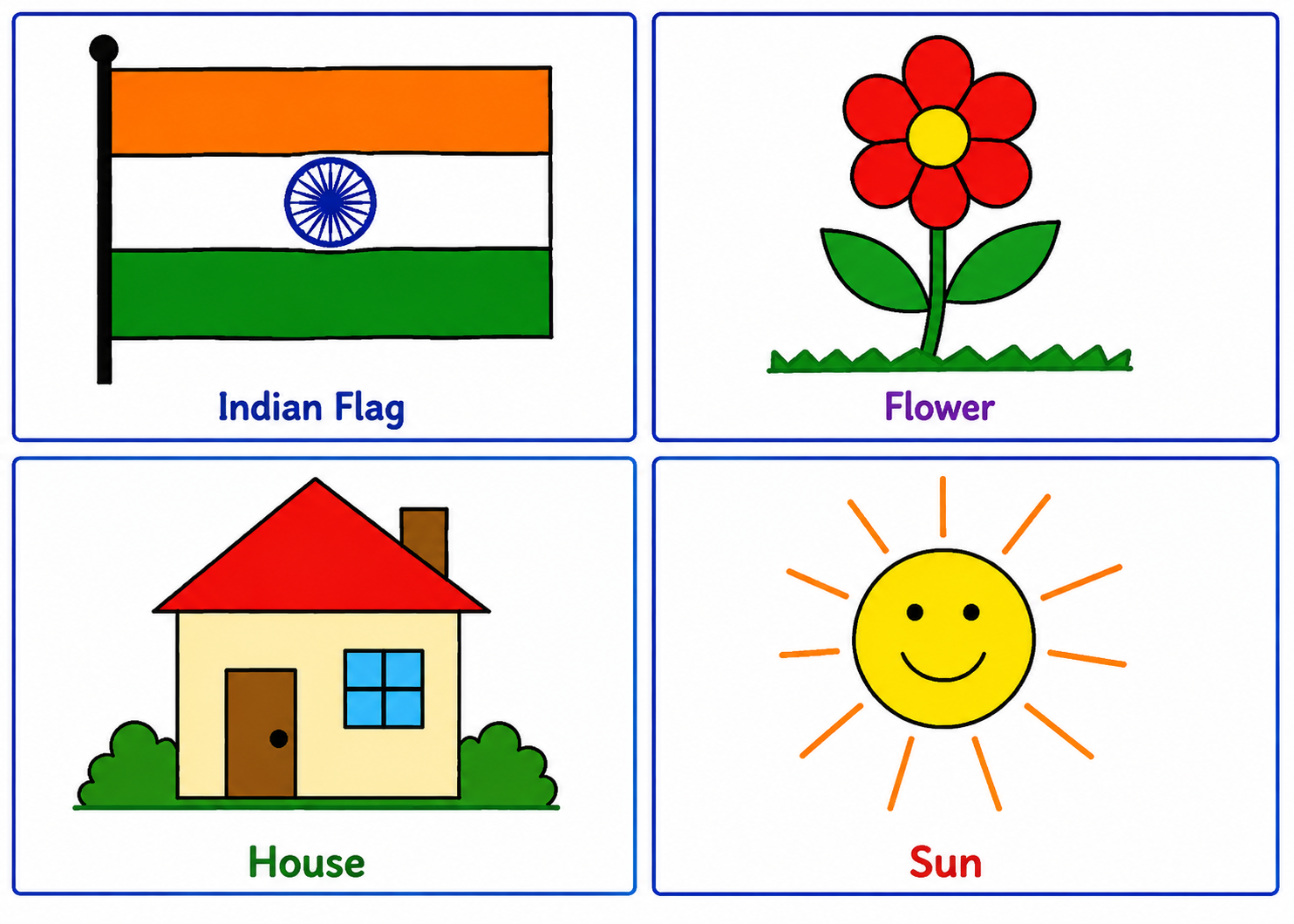
| Indian Flag 🇮🇳 | Rectangle, Line, Fill, Ellipse | Draw a rectangle. Divide it into 3 equal parts with lines. Fill top with saffron, middle with white, bottom with green. Draw a blue circle (Ashoka Chakra) in the center. |
| Flower 🌸 | Ellipse, Fill, Pencil | Draw a small circle in the center. Draw oval petals around it. Fill the center with yellow and petals with red or pink. Add a green stem with the Pencil tool. |
| House 🏠 | Rectangle, Triangle, Line, Fill | Draw a rectangle for the walls. Add a triangle on top for the roof. Draw a small rectangle for the door and squares for windows. Fill with colors. |
| Sun ☀️ | Ellipse, Line, Fill | Draw a circle. Fill it with yellow or orange. Draw straight lines going outward from the circle for sun rays. |
1. Select the Rectangle tool and draw a big rectangle on the canvas.
2. Use the Line tool to draw two horizontal lines, dividing the rectangle into three equal horizontal strips.
3. Select the Fill tool. Choose saffron (orange) color and click in the top strip.
4. Choose white and click in the middle strip (it may already be white).
5. Choose green and click in the bottom strip.
6. Select the Ellipse tool. Choose navy blue color. Draw a small circle in the center of the white strip. This is the Ashoka Chakra!
7. Save your drawing as "Indian Flag".
Key Words
| Word | Meaning |
|---|---|
| MS Paint | A free drawing program that comes with Windows computers |
| Canvas | The white drawing area where you create your pictures |
| Toolbar | The panel that contains all the drawing tools |
| Pencil Tool | A tool that draws thin freehand lines |
| Brush Tool | A tool that draws thicker, softer strokes |
| Eraser | A tool that removes parts of your drawing |
| Fill with Color | A tool (paint bucket) that fills a closed area with color |
| Color Palette | The row of colors you can choose from for drawing |
| Save | To store your drawing as a file on the computer so you can open it later |
| Shapes | Ready-made figures like rectangle, circle, oval, line, and triangle |
- MS Paint is a free drawing program that comes with Windows.
- To open MS Paint: Start → All Programs → Accessories → Paint.
- The main parts of MS Paint are: Title bar, Menu bar, Toolbar, Drawing area (Canvas), Color palette, and Status bar.
- The Pencil tool draws thin lines. The Brush tool draws thicker strokes.
- The Eraser tool removes parts of your drawing.
- The Fill with Color (Paint Bucket) tool fills a closed shape with color.
- You can draw shapes like lines, rectangles, circles, ovals, and triangles.
- To save your drawing: File → Save → Type a name → Choose location → Click Save.
- Hold Shift while drawing to make perfect circles and squares.
- Press Ctrl+Z to undo a mistake.
Finished learning? Now test what you know!