Input and Output Devices
Learning Objectives
- Understand what input and output devices are.
- Name common input devices: keyboard, mouse, microphone, scanner, webcam, joystick, touchpad.
- Name common output devices: monitor, printer, speakers, projector, headphones.
- Understand that a touchscreen is both an input and output device.
- Learn about storage devices: pen drive, hard disk, CD/DVD.
- Explain the difference between input and output with examples.
Let Us Begin!
When Ravi uses a computer, he types on the keyboard and sees words appear on the screen. When Meena records her voice, the computer listens through the microphone and plays it back through the speakers. In all these cases, information is either going INTO the computer or coming OUT of it.
Devices that send information to the computer are called input devices. Devices that bring information out from the computer are called output devices. Some special devices can store information for later use — these are called storage devices.
What is an Input Device?
An input device is any device we use to give data or instructions to the computer. Think of it as talking TO the computer.
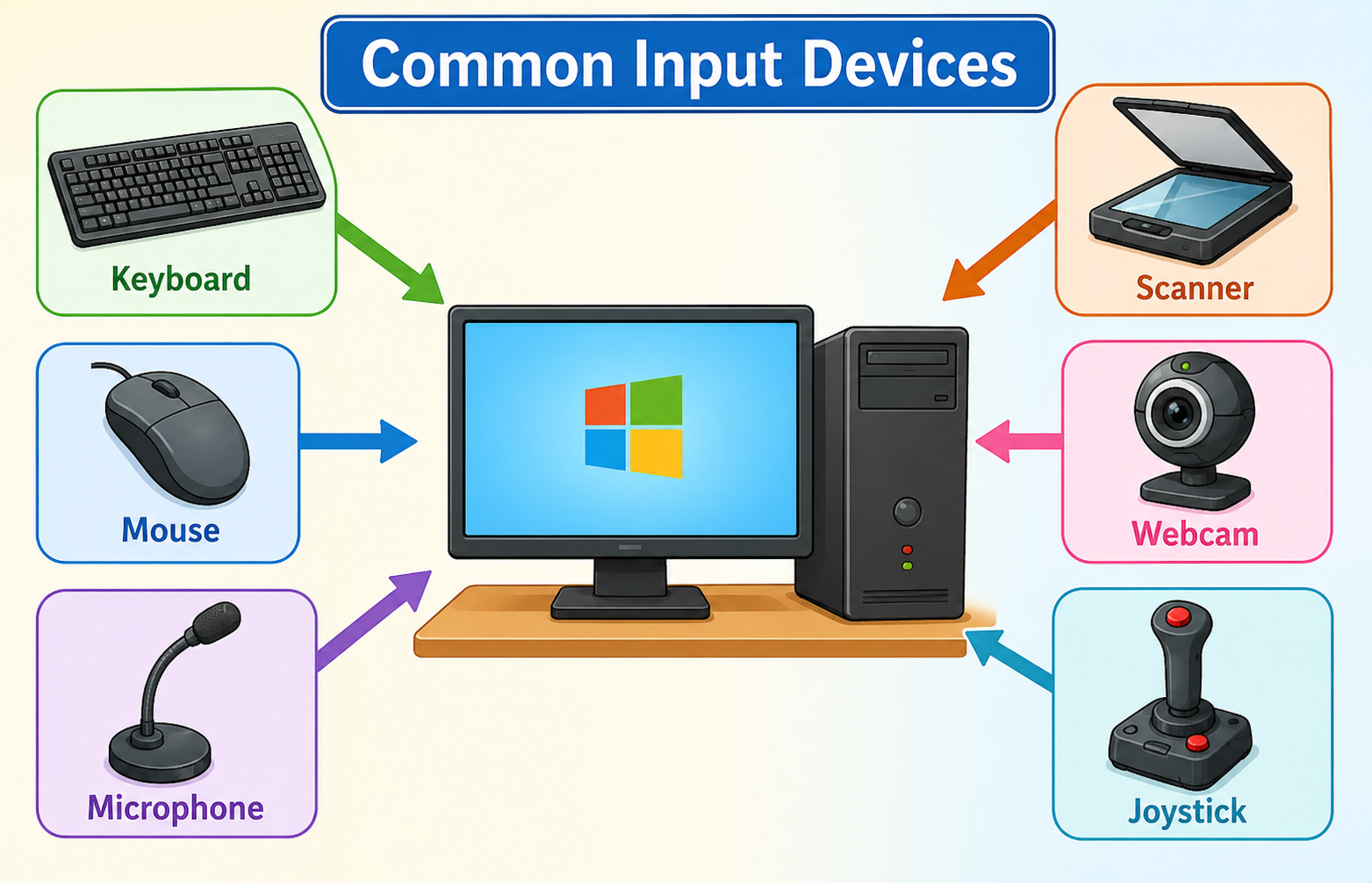
| Input Device | What it does | Daily Life Example |
|---|---|---|
| Keyboard | Used to type letters, numbers, and symbols | Ravi types his name in a form at school |
| Mouse | Used to point, click, and select items on screen | Meena clicks on a game icon to open it |
| Microphone | Captures sound and voice | Sita speaks into the mic during an online class |
| Scanner | Copies a paper document into the computer | Arjun scans his drawing to send to his teacher |
| Webcam | Captures video and photos | Ravi uses the webcam for a video call with his grandparents in Chennai |
| Joystick | Used to control movement in games | Arjun uses a joystick to play a car racing game |
| Touchpad | A flat pad on laptops used instead of a mouse | Meena moves her finger on the touchpad to move the cursor |
| Light Pen | A pen-shaped device used to draw or select on screen | Sita uses a light pen to draw a picture on the computer |
What is an Output Device?
An output device is any device that brings information out of the computer so we can see, hear, or use it. Think of it as the computer talking back to us.
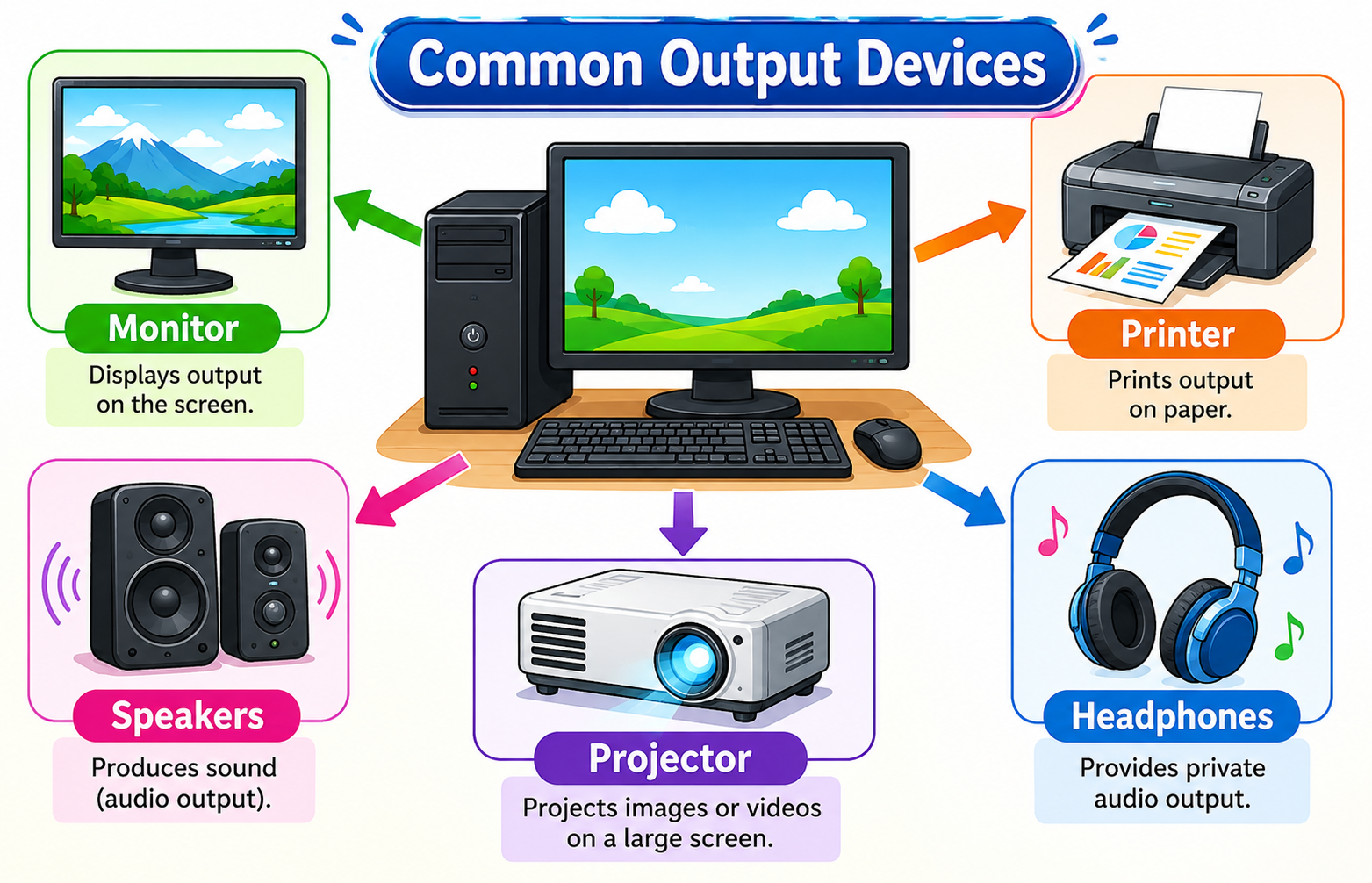
| Output Device | What it does | Daily Life Example |
|---|---|---|
| Monitor | Displays text, images, and videos on screen | Meena watches a story on the monitor |
| Printer | Prints documents and pictures on paper | Sita prints her project report for school |
| Speakers | Produce sound — music, voices, alerts | Arjun listens to a Hindi song through the speakers |
| Projector | Projects the screen image on a large wall or board | The teacher uses a projector to show a map to the whole class |
| Headphones | Small speakers worn on the ears for private listening | Ravi wears headphones to listen to an English lesson without disturbing others |
| Plotter | Prints large drawings like maps and building plans | An architect uses a plotter to print a house design |
Touchscreen — Both Input and Output!
A touchscreen is a special device that works as both an input device and an output device at the same time.
- As an output device: It displays pictures, text, and videos (like a monitor).
- As an input device: You can tap, swipe, and type on it to give instructions to the computer.
Mobile phones, tablets (like iPads), ATM machines at banks, ticket booking machines at railway stations, and smart boards in classrooms all use touchscreens.
When Meena taps on a game icon on her tablet, she is giving input. When the game appears on the screen, the tablet is giving output. The same screen does both jobs!
Storage Devices
A storage device is used to save (store) data so that we can use it later. Without storage devices, all our work would be lost when we turn off the computer.
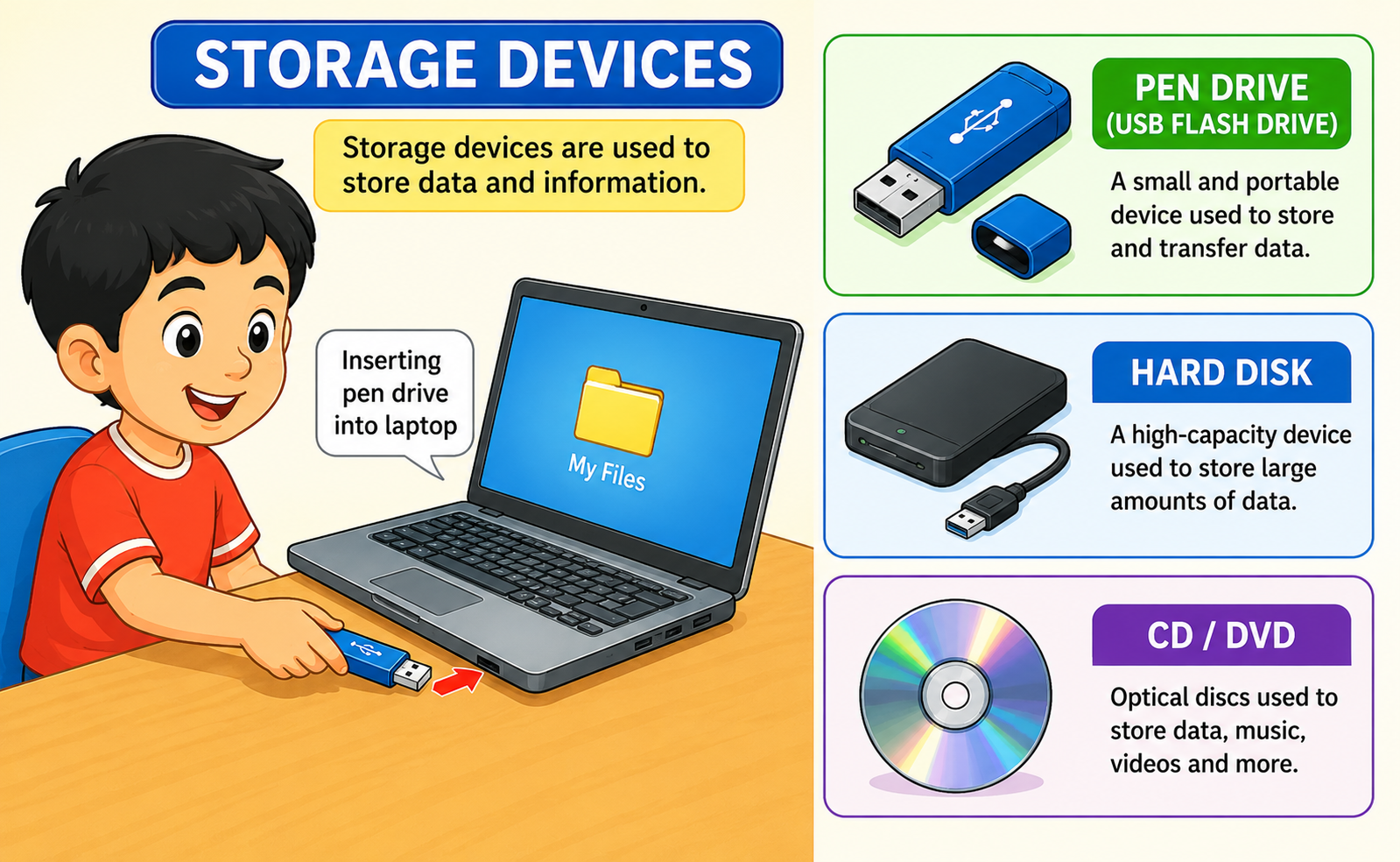
| Storage Device | What it does | Daily Life Example |
|---|---|---|
| Pen Drive (USB Flash Drive) | A small device that stores files and can be carried in your pocket | Ravi saves his school project on a pen drive and takes it to school |
| Hard Disk | A large storage device inside the computer that stores all files, programs, and the operating system | All of Meena's photos, games, and homework are saved on the hard disk |
| CD / DVD | A flat, round disc that stores music, videos, or software | Arjun watches a movie on a DVD. Sita installs educational software from a CD. |
| Memory Card (SD Card) | A tiny card used in phones and cameras to store photos and videos | Sita's camera uses a memory card to save all the photos she takes |
The Key Difference
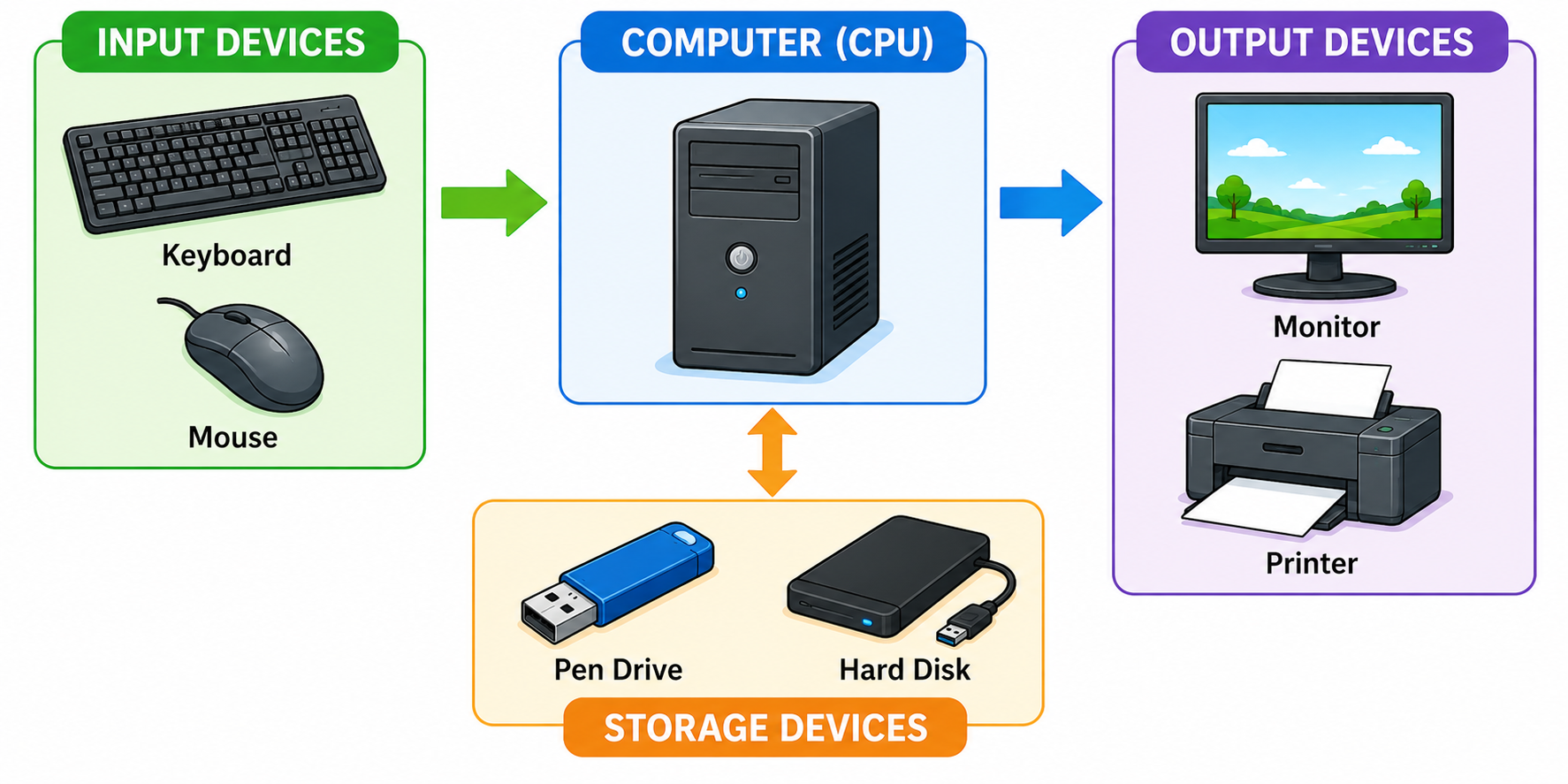
Input = Giving information TO the computer (you → computer)
Output = Getting information FROM the computer (computer → you)
Storage = Saving information for later use (computer ↔ device)
A keyboard sends your typing to the computer — it is an INPUT device.
A monitor shows you what the computer has processed — it is an OUTPUT device.
A pen drive saves your files to carry them — it is a STORAGE device.
A touchscreen lets you tap AND shows you results — it is BOTH input and output!
Key Words
| Word | Meaning |
|---|---|
| Input device | A device used to give data or instructions to the computer |
| Output device | A device that brings results or information out of the computer |
| Storage device | A device used to save data for later use |
| Keyboard | An input device with keys for typing letters and numbers |
| Monitor | An output device that displays information on a screen |
| Microphone | An input device that captures sound and voice |
| Printer | An output device that prints documents on paper |
| Scanner | An input device that copies paper documents into the computer |
| Projector | An output device that displays images on a large screen or wall |
| Touchscreen | A device that works as both input and output |
| Pen Drive | A small portable storage device (also called USB flash drive) |
| Hard Disk | A large storage device inside the computer |
| CD / DVD | A flat round disc used to store music, videos, or software |
| Joystick | An input device used to control games |
| Headphones | An output device worn on ears for private listening |
- Input devices send information TO the computer.
- Output devices bring information FROM the computer.
- Storage devices save information for later use.
- Keyboard, mouse, microphone, scanner, webcam, joystick, and touchpad are input devices.
- Monitor, printer, speakers, projector, and headphones are output devices.
- A touchscreen is both an input and output device.
- Pen drive, hard disk, CD/DVD, and memory card are storage devices.
- A computer needs input, output, and storage devices to be useful.
Finished learning? Now test what you know!